
Generate image
A picture from a prompt, or from a reference image link. Gives back the Image link, the model used and what it cost.
GenMagic adds five steps to HighLevel's workflow builder: Generate image, Start video, Get video, Generate voiceover and Generate text. They run on your own GenMagic account, and you pay per result.
HighLevel asks for it when you install the app. No key yet? Create a free GenMagic account and a key: confirm your email, press Create key and copy it. A new account starts with a $0.50 balance, enough for your first images.
App steps appear in HighLevel's Actions list once premium workflow actions are on for the sub-account. If you do not see GenMagic there, an agency admin switches them on in Agency Settings, under Workflow - Premium Features.
This makes one image each time a contact is added, so you can see a GenMagic step work end to end. Every other step works the same way.
In the sub-account where you installed GenMagic, open Automation, then Create Workflow and Start from scratch. Click Add new trigger and pick Contact Created.
Click the + under the trigger, type GenMagic in the Actions search, and choose Generate image under Installed apps.
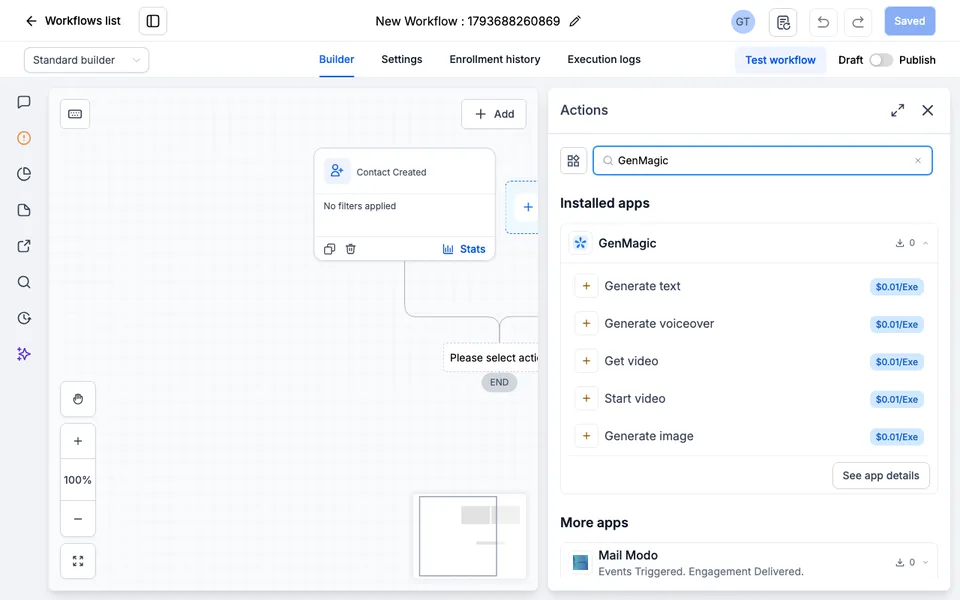
Describe the picture. The tag icon in the Prompt field inserts contact fields, for example {{contact.first_name}}. Leave Model on GenMagic's pick or choose one by its price, pick a Shape, and click Save action.
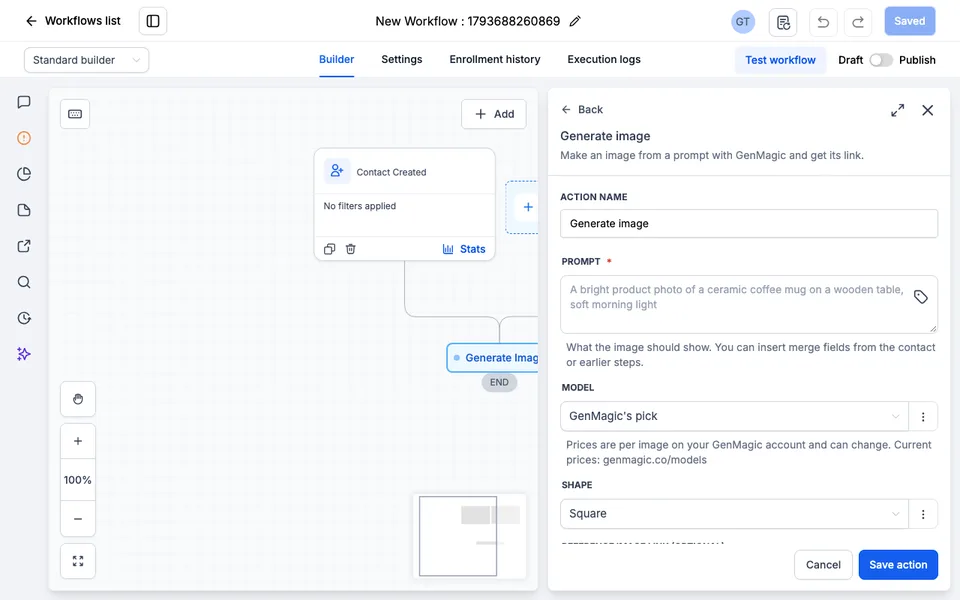
Add a step after it, for example Send Email, Send SMS or Update Contact Field. In its text, click the tag icon and pick the Generate image step's Image link. Steps can follow each other: here a Generate text step comes next.
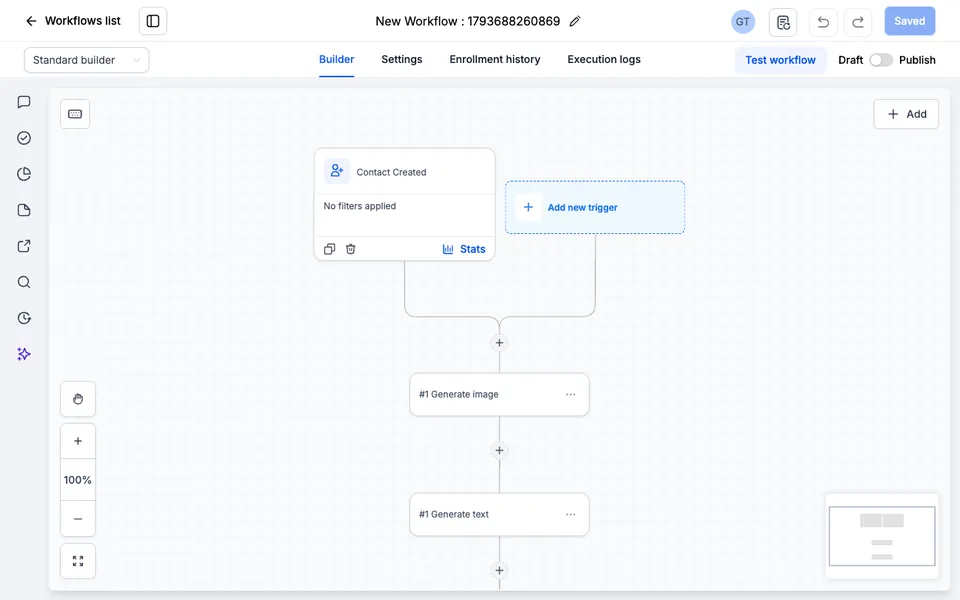
Click Test workflow, pick a contact and run it. Open Execution logs and click View details on the Generate image line: it shows the Image link, the model used and what the image cost. When it looks right, switch the workflow from Draft to Publish.
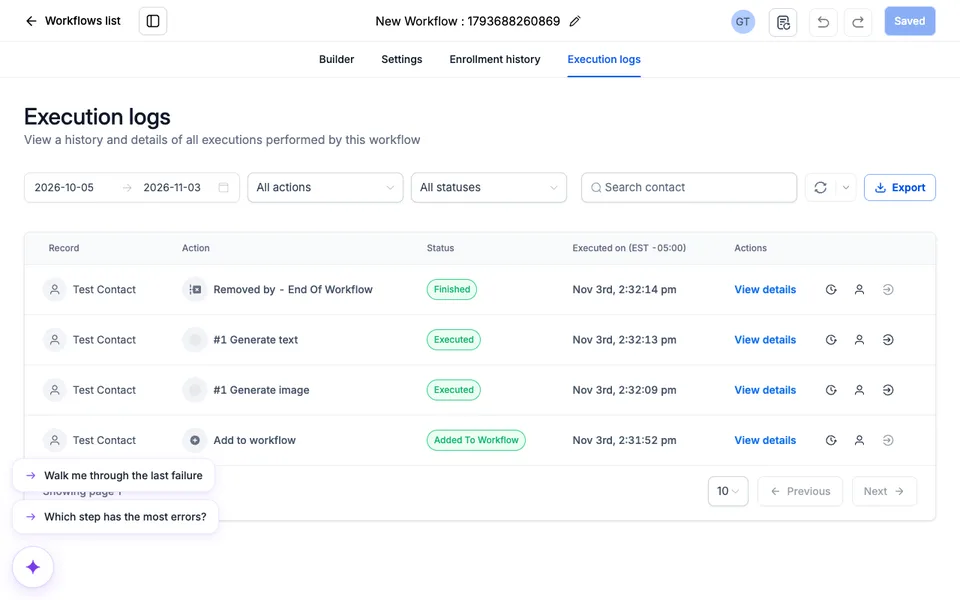
A step that cannot run says why in its log, in plain words: a key that was revoked, a balance that ran out (with a link to top up), or a prompt a model refused. Nothing is charged for a step that fails.
A picture from a prompt, or from a reference image link. Gives back the Image link, the model used and what it cost.
Starts a clip with the video model you pick (Veo, Kling, Seedance, Wan and more) and gives back a Video id at once.
Looks the clip up by its Video id, with three paths: Completed (with the Video link), Still processing and Failed.
Turns text into speech in the voice you pick and gives back an Audio link to the file.
Writes copy with the language model you pick, free models included, and gives back the Text.
Contact Created → Generate image → Send Email
Put the contact's first name and what they asked about in the prompt, then place the Image link in the email.
Customer Booked Appointment → Generate text → Generate voiceover → Send SMS
A free text model writes two warm sentences, the voiceover step speaks them, and the SMS carries the Audio link.
Form Submitted → Start video → Wait 2 minutes → Get video → Send Email
On Still processing, add a Wait of a minute that goes back to Get video; on Completed, send the Video link.
Customer Replied → Generate text → Internal Notification
Your team gets a draft answer written from the customer's message, to edit and send themselves.
Every model and its price is in the model library; compare per-second video prices on video API pricing. Agencies making client videos at volume can read GenMagic for agencies, and the same steps work in Zapier, Make and n8n.
The app is free. Each step is paid from your own GenMagic balance at the price shown next to the model: an image on GenMagic's pick (Google: Nano Banana 2.1) costs about $0.06, and a 4-second clip on Google: Veo 3.1 Lite about $0.30. A new GenMagic account starts with a one-time $0.50 balance. HighLevel also shows its own small fee per run next to each premium step in the Actions list.
GenMagic's steps are premium workflow actions in HighLevel, so they appear once premium workflow actions are switched on for that sub-account. An agency admin switches them on in Agency Settings, under Workflow - Premium Features. Then search for GenMagic in the Actions list again.
You paste it once when you install the app. HighLevel checks it by reading your GenMagic balance, which costs nothing, keeps it with the install, and uses it only when a GenMagic step runs. You can revoke the key on your GenMagic account at any time; a revoked key stops every step with a message that says so.
No. Only what you place in a step's fields (a prompt, a reference image link, the text to speak) is sent to GenMagic. The app asks for one permission, workflows.readonly, which HighLevel needs to show an app's steps in the workflow builder, and it calls no other API of HighLevel.
A clip takes one to several minutes to make. Start video gives back a Video id at once, so the workflow does not wait on it; Get video, after a Wait step, gives back the clip. You pay once, when the clip is done, and a clip that fails costs nothing.
The step stops and its log says so, with a link to top up. To keep workflows running, turn on auto top-up on your GenMagic account: it refills from your saved card when the balance falls below a line you set, up to a monthly limit you choose.
Stuck on a step? Write to hello@genmagic.co and we answer within a day.